
Upload photos from your computer
Use the Ente desktop app to upload photos and videos from your computer or an external drive.
Start an upload
Download and install the Ente desktop app, then sign in.
Click Upload and select Files or Folder. You can also drag and drop files or folders into the app window.
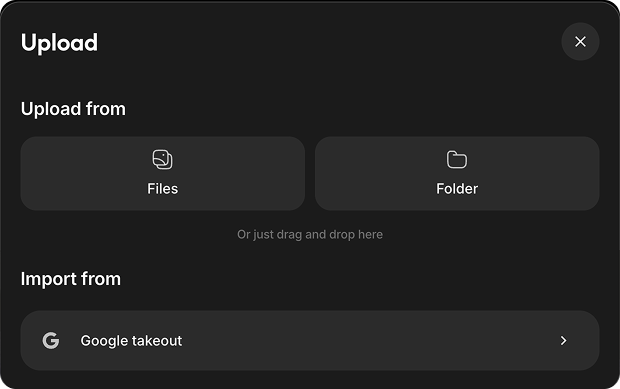
Choose an album. For folders, choose one album or a separate album for each folder.
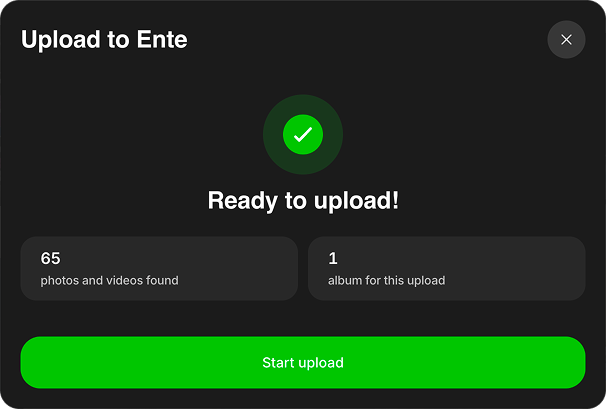
Review the media and album counts, then click Start upload.
NOTE
A single file may skip this review. Google Takeout imports show it; Watch Folder uploads do not.
Understanding folder structure options
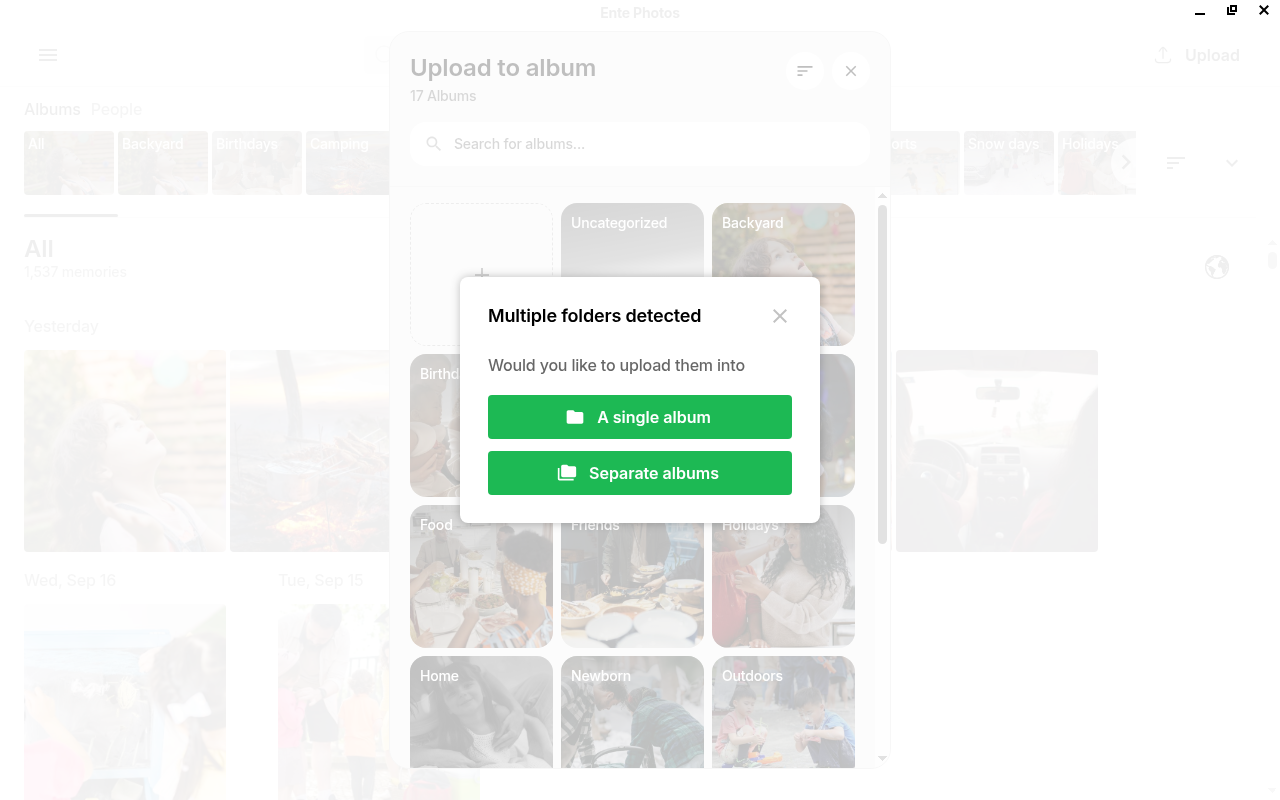
When you upload a folder, Ente will ask how you want to organize your photos:
Single album: Creates one Ente album containing all files from all subfolders. Best for a collection where folder structure doesn't matter.
Separate albums: Creates a separate Ente album for each subfolder. Best for preserving your existing organization (e.g., "2023/Summer", "2023/Winter" become separate albums).
Learn more about folder structure handling.
Follow upload progress
Uploads start as a compact card in the bottom-right corner. Expand it for details.

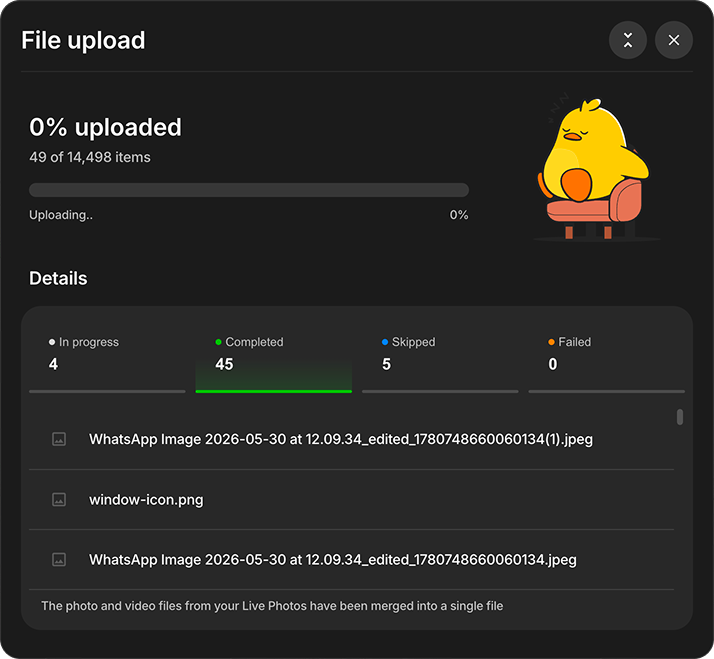
The expanded view opens on In progress.
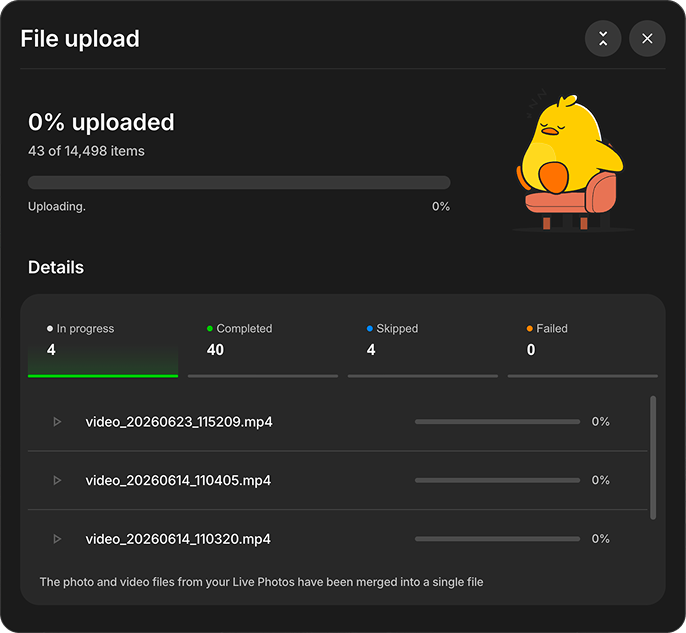
Use the four sections to review the upload:
- In progress: Active files.
- Completed: Successfully uploaded files.
- Skipped: Files not uploaded, grouped by reason.
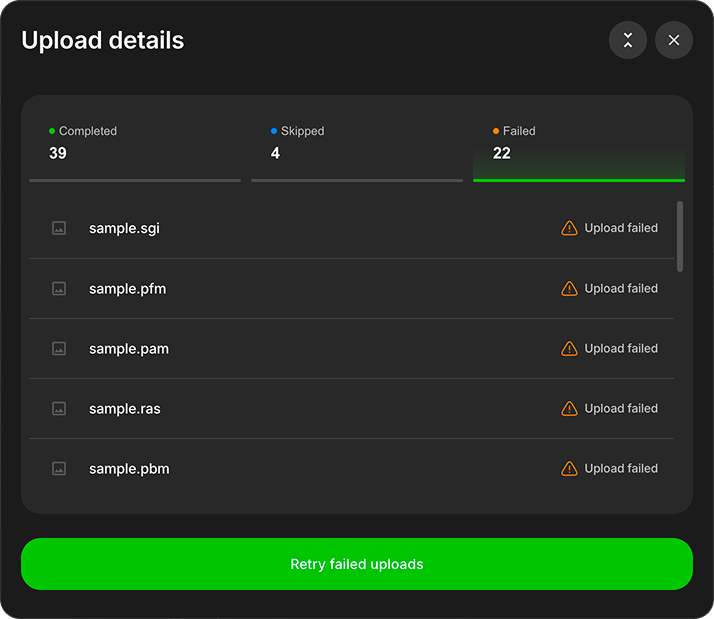
- Failed: Unsuccessful uploads.
In-progress and completed files
Open Completed to see uploaded files.
Skipped files
Skipped groups files by reasons such as Already on Ente and Hidden file.
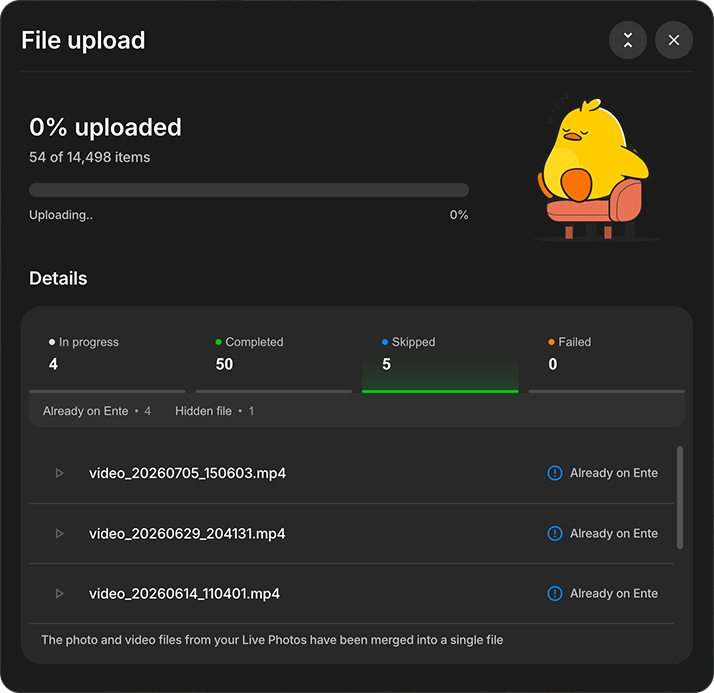
Select a reason to filter the list.
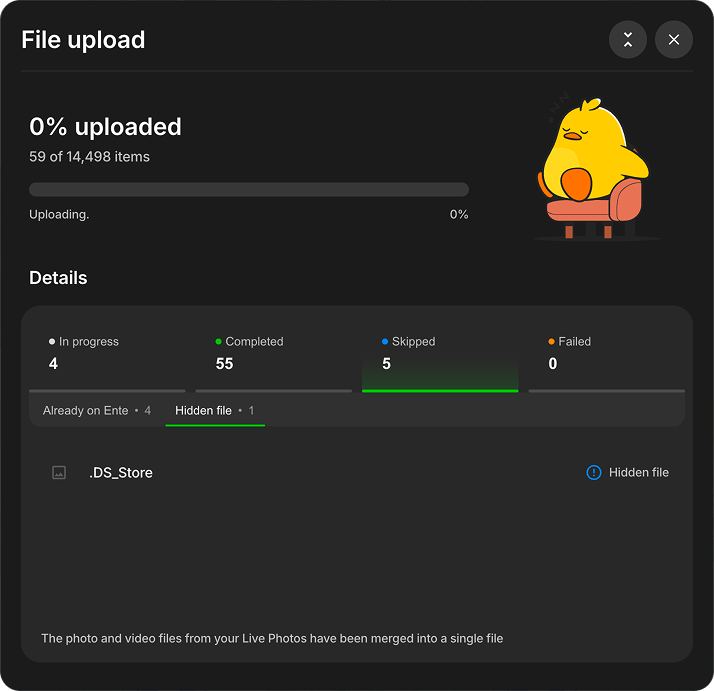
Skipped files are not retryable failures.
Stop and resume an upload
Close an active upload and confirm Stop uploads. Completed files remain in Ente and will be skipped if selected again.
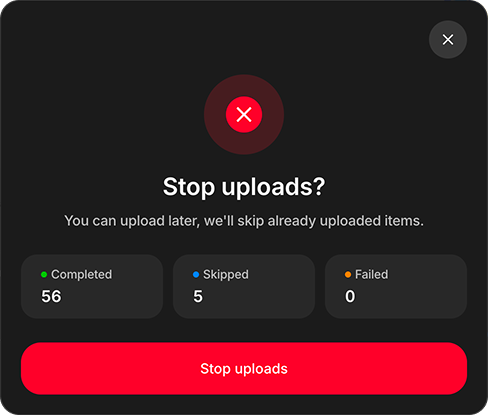
After stopping, open a section to review its files.
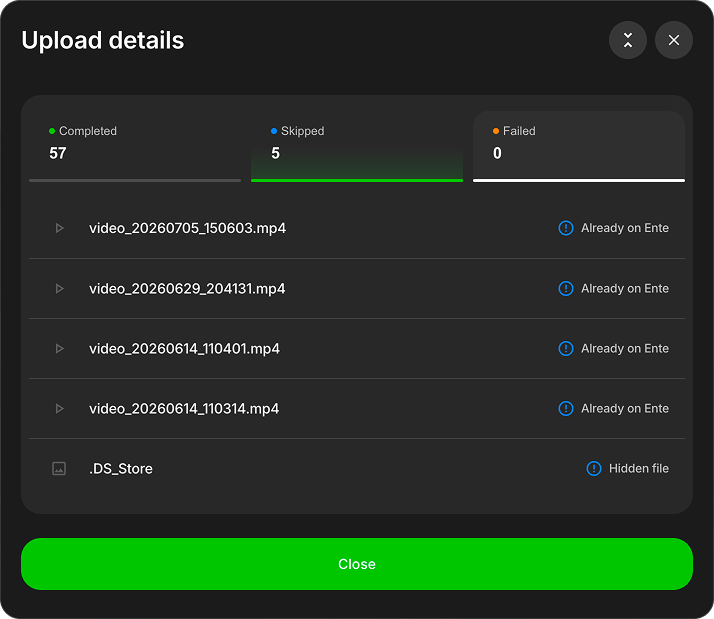
To continue, select the same files or folders again. Ente uploads only the remaining items.
Review a completed upload
When the upload finishes, click Review items to inspect skipped or failed files.
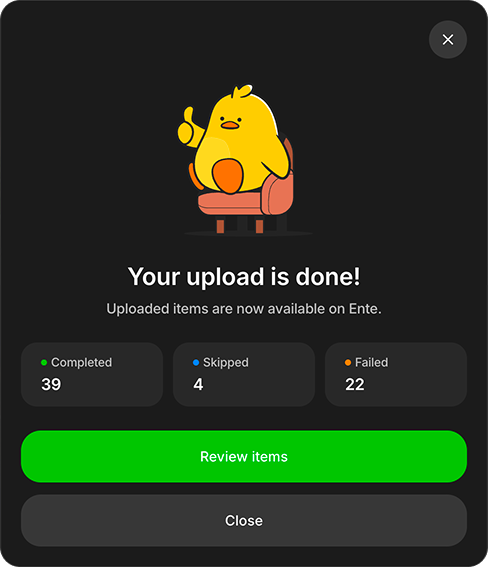
Open Failed, then click Retry failed uploads to try them again.
Tips for large libraries
- Start small: Try uploading a small folder first to familiarize yourself with the process
- Check your storage: Ensure you have enough space in your Ente plan before starting large uploads
- Stable connection: Use a reliable internet connection, preferably wired Ethernet for very large libraries
- Keep app open: While the initial upload of multi-TB libraries may take hours or even days, the app will resume if interrupted
- Resumable uploads: If uploads get interrupted, select or drag and drop the same folders again. Ente skips already uploaded files and continues with the rest.
Alternative: Watch Folders
Instead of a one-time upload, you can use watch folders to automatically sync folders on an ongoing basis. This is perfect for:
- Photo libraries you actively update
- Automated backup workflows
- Keeping Ente in sync with your local photo organization
Troubleshooting
Upload is slow: Try disabling "Faster uploads" in Settings > Preferences > Advanced if you're having issues
Large videos causing problems: See the large uploads troubleshooting guide
Files being skipped or failing: Review the reason in Upload details, then check Troubleshooting for common solutions.
If you run into any issues during uploads, please reach out to support@ente.com and we will be happy to help you!