
Create Your First Item
This guide walks you through creating your first item in Ente Locker. You'll learn how to add information and organize it into collections.
Adding an item
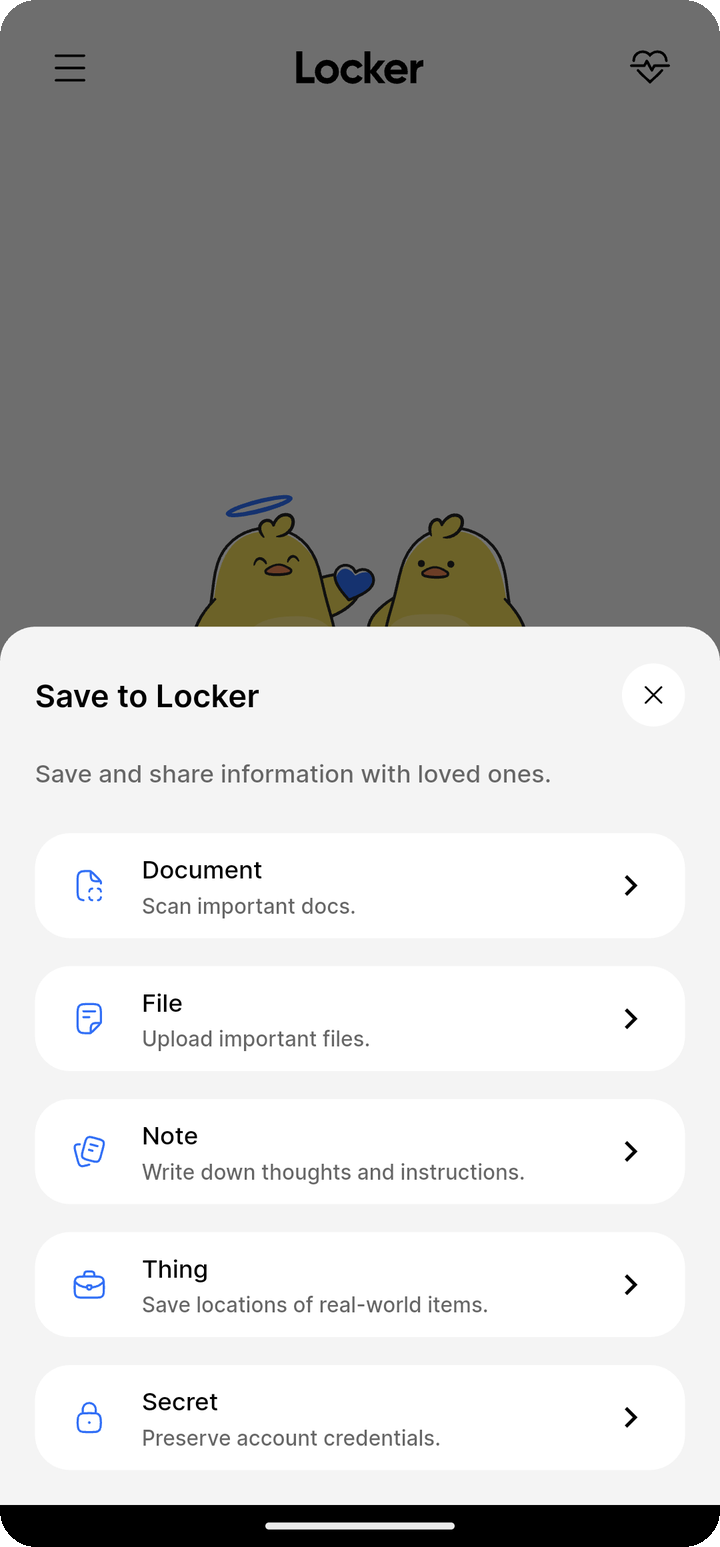
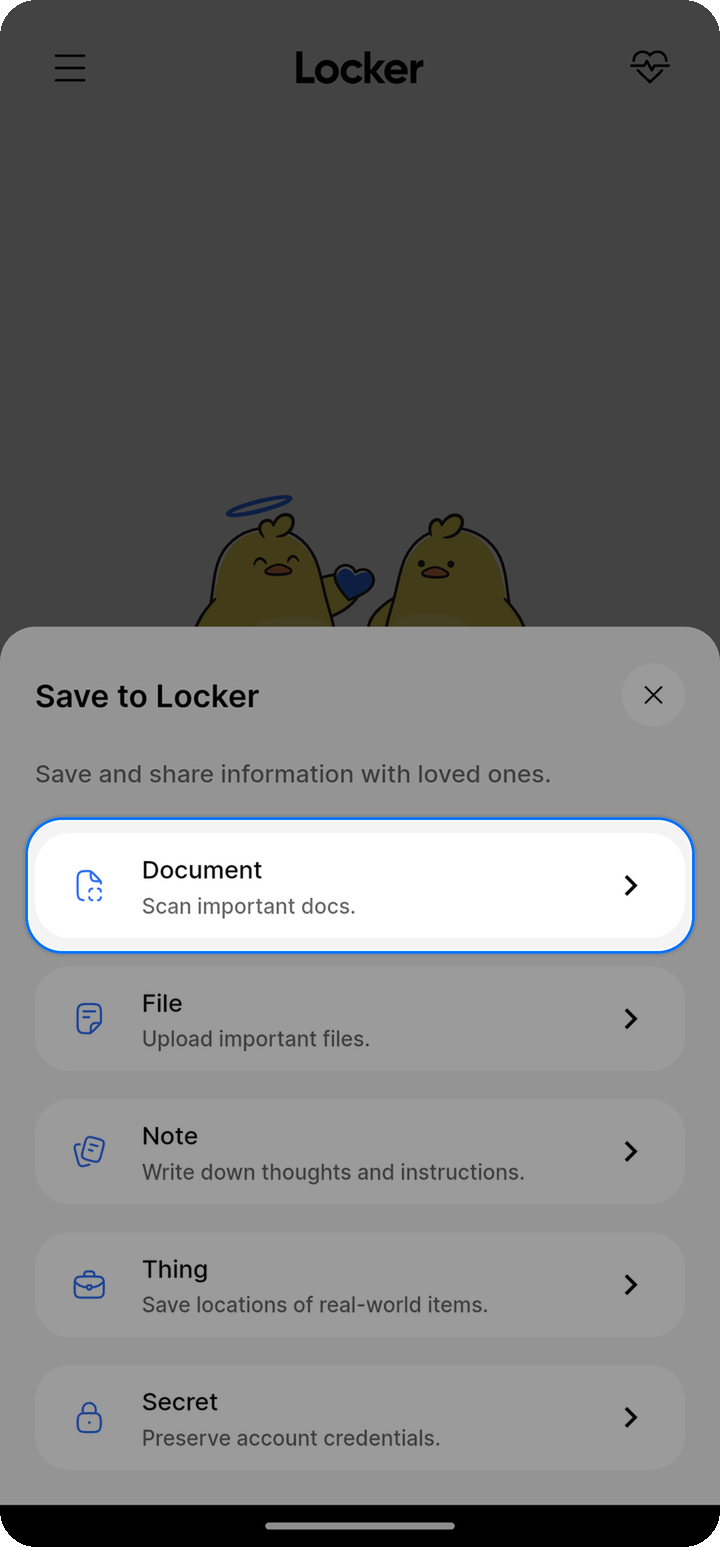
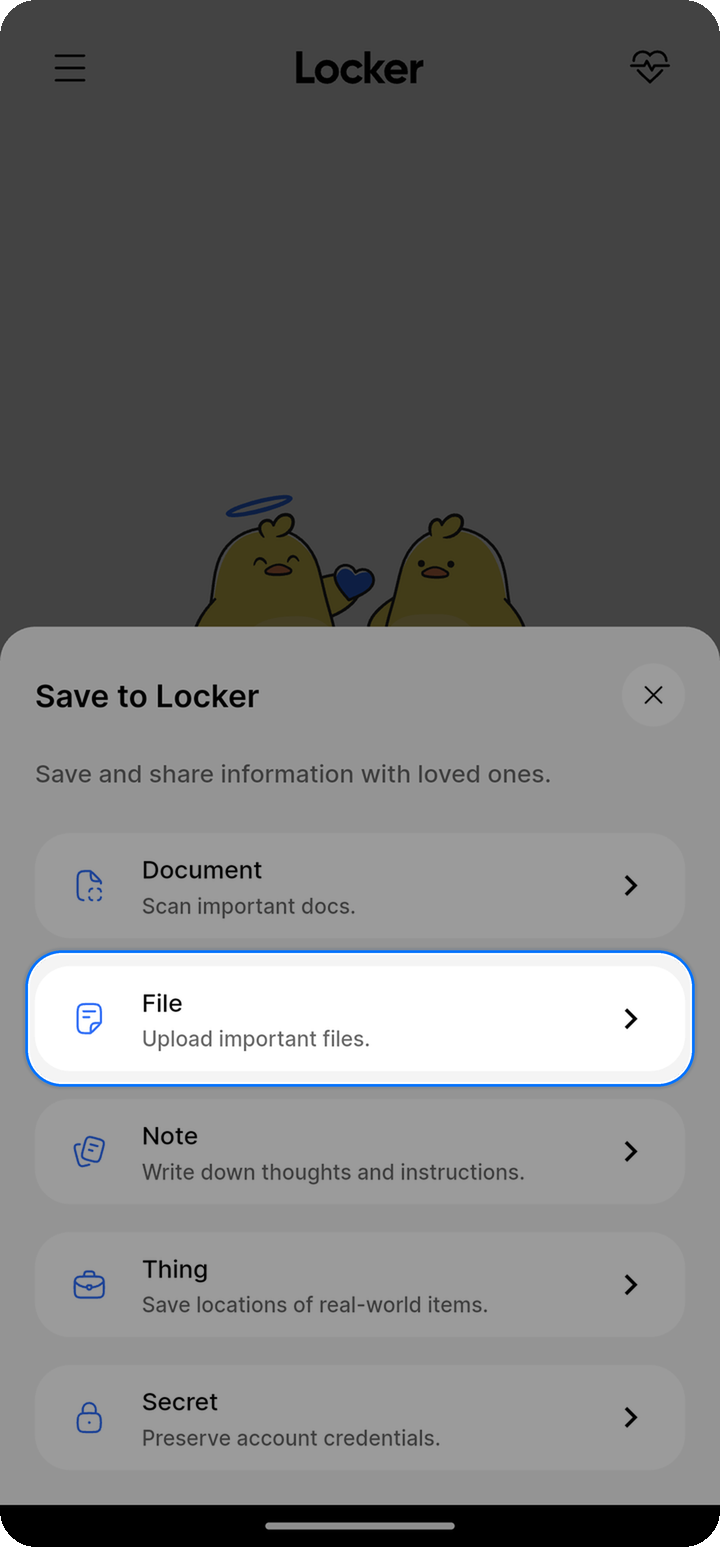
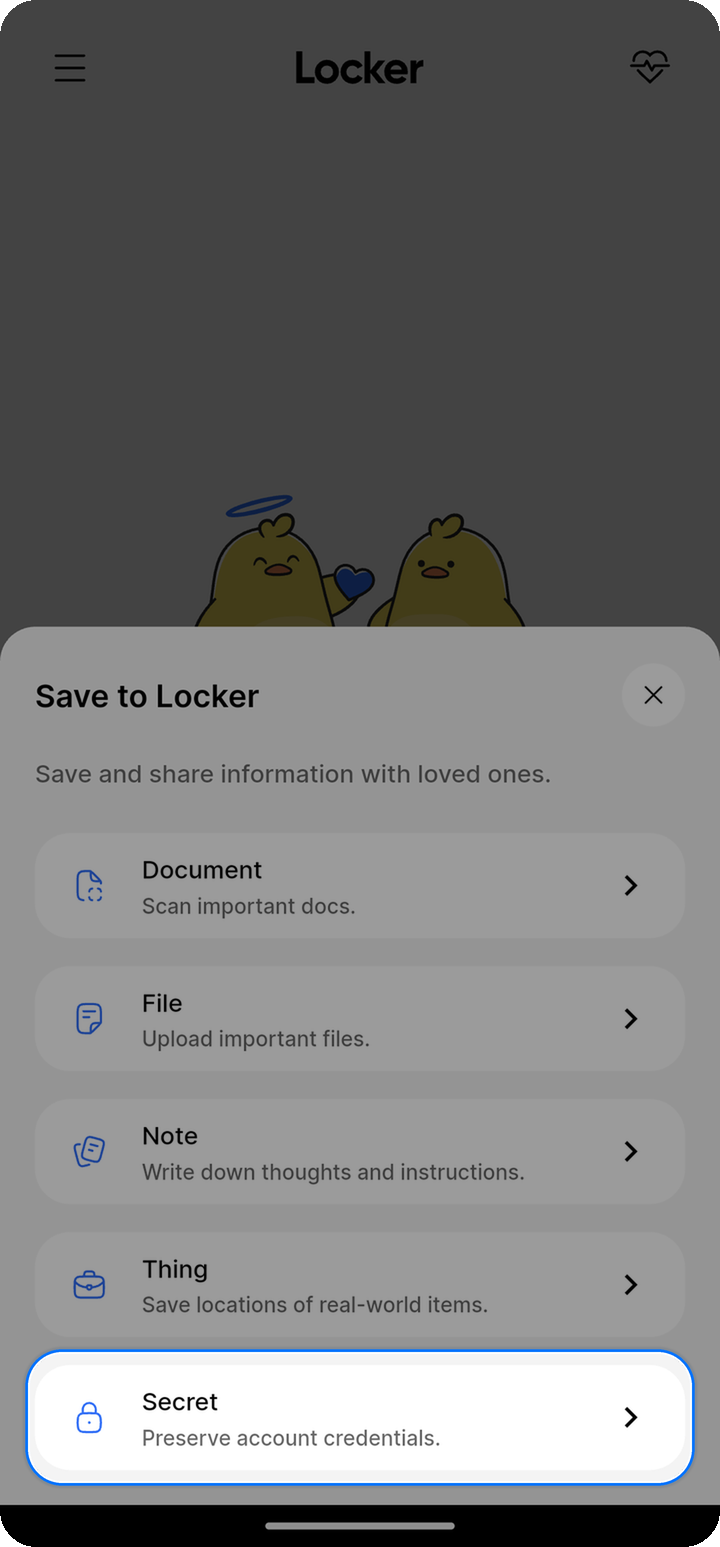
- Open Ente Locker
- Tap the + button at the bottom of the screen
- Select the type of item you want to add:
- Document: Scan paper documents with your phone's camera
- File: Upload PDFs, images, and other files
- Note: Free-form text for any secure notes
- Secret: Usernames and passwords
- Thing: Track where physical documents are stored
Example: Scanning a document
Document scanning is available in the Locker mobile app on Android and iOS.
- Tap the camera button on the home screen
- Point the camera at a page. Locker can capture it automatically, or you can switch to Manual and tap the shutter button
- Scan any additional pages, then tap the check-mark button
- Review the pages. You can adjust the crop, rotate or delete a page, retake a page, add another page, and rename the PDF
- Tap Save to Ente
- Leave collections unselected to use Uncategorized, or select one or more collections
- Tap Save
Example: Uploading a file
- Tap the + button
- Select File
- Choose one or more files from your device
- To rename a file, tap the pencil icon beside its name. Enter a new name and tap Save
- Leave collections unselected to use Uncategorized, or select one or more collections
- Tap Save to upload
Example: Adding a secret
- Tap the + button
- Select Secret
- Fill in the fields:
- Name: A name for this entry (e.g., "Bank Account")
- Username: Your username or email (optional)
- Password: Your password (optional)
- Notes: Any additional information (optional)
- Leave collections unselected to use Uncategorized. Or select one or more collections to organize this item
- Tap Save
Organizing with collections
Collections help you group related items together and control who can access them. Items can belong to multiple collections, so you can organize the same item in different ways.
When creating an item:
- Tap the collection field
- Leave all collections unselected to use Uncategorized. Or select an existing collection or create a new one
- Tap Save
Use Uncategorized for items you want to organize later.
Learn more about Collections.
Viewing your items
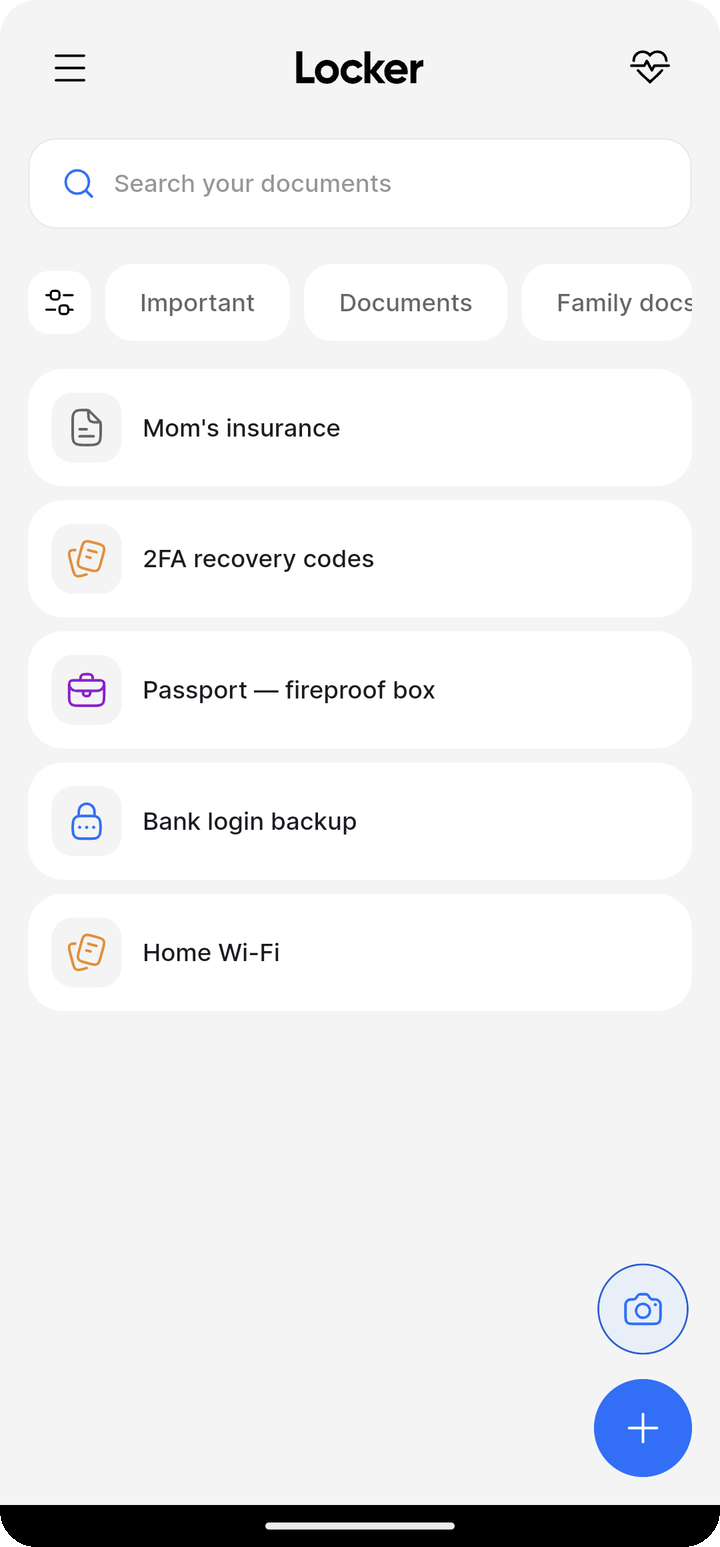
From the home screen:
- Search: Find items by title
- Collections: Browse items organized by collection
Next steps
Now that you've created your first item, set up Locker for your family with shared collections, trusted contacts, and Legacy Kits.