To add an emoji reaction in Google Photos, open a photo in a shared album, tap Add reaction, and choose an emoji. The steps below work in the Google Photos app on Android, iPhone and iPad.
Google highlighted the feature in its October 29, 2026 update. A heart for a family portrait or a laughing face for an outtake gives people a quick way to respond without starting a separate chat.
In this guide: Add or change a reaction · Missing reactions · Sharing settings
How to add or change an emoji reaction
Start by updating the Google Photos app. Then:
- Open a shared album and select a photo.
- Tap Add reaction at the bottom left.
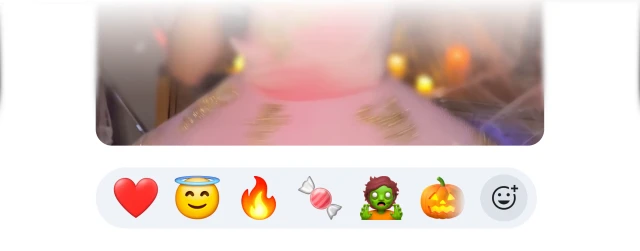
- Choose an emoji, or tap More reactions to see additional choices.
To change your reaction, select a different emoji. To see other people's reactions and comments, tap the group of reactions beside Add reaction. You can change your reaction at any time.
These steps follow Google's instructions for Android and iPhone and iPad.
Make the album useful beyond the first reaction
Reactions say “I saw this.” Comments can preserve the story. For an album you will enjoy revisiting:
- Add the details you might forget: a name, a place, or what happened just before the picture.
- Decide who can contribute. Turn off Collaborate in Google Photos if you want a curated album rather than uploads from everyone.
- Save the photos you want to keep. Access to someone else's album is not the same as having your own copy.
Google's save-to-library guidance explains that saved copies are separate from the shared originals and count toward your storage quota, with some Partner Sharing exceptions.
Emoji reactions not showing?
Check these basics first:
- Update Google Photos through the App Store or Google Play.
- Open the photo from a shared album, rather than just from your personal library.
- Check the album's interaction settings. Google lets album owners disable Comments & likes. Ask the owner to check this if you cannot interact with photos.
On Android, the owner can open the album and go to More → Sharing settings → Comments & likes. Google's album-settings guide explains that disabling commenting also prevents likes. The reaction steps above are for mobile; the web interface may differ.
Who can see a shared album?
Google Photos offers two ways to share an album: with specific Google accounts or through a link. Both can be useful, but they behave differently.
| Sharing method | What to keep in mind |
|---|---|
| Specific people | You choose the accounts to invite. Google notes that people with access can also add others, so review the participant list. |
| A shareable link | The URL is designed to be unguessable, but recipients can forward it. Anyone who obtains it can view the album. |
Removing someone from the participant list does not close their access through an existing link while link sharing remains enabled. To replace a link, turn link sharing off and back on, then send the new URL to the people you want to invite. These are existing shared-album controls, not changes introduced by emoji reactions.
For a small family album, named invitations may be easier to keep track of. For a group trip, a link may be more convenient. The important thing is that everyone understands how broadly it can travel.
Is Google Photos sharing private?
Your Google Photos library is not public by default. Sharing an album lets other people see it, so privacy depends partly on who you invite and whether you enable link sharing.
Google encrypts your photos while they are being uploaded and while they are stored. This helps protect them, but it is different from end-to-end encryption, which keeps photos private even from the company storing them. Google's Photos security page does not promise that additional protection for shared albums.
Whatever service you use, someone who can view a photo can still take a screenshot or keep a copy. Share with people you trust.
A privacy-first option: Ente Photos
If your group already uses Google Photos, emoji reactions are a welcome addition. If you would prefer a privacy-first home for your photos, try Ente Photos.
Ente supports comments and heart likes, rather than Google's broader emoji picker. Your photos and these interactions are end-to-end encrypted, meaning Ente cannot read them. Friends can view, comment and like through a sharing link without installing Ente or creating an account, when those interactions are enabled.
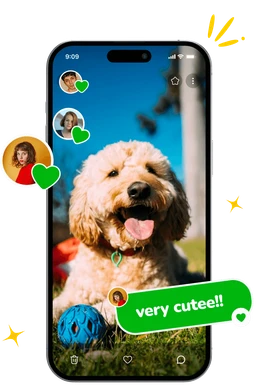
Ente's sharing links support passwords and expiry dates. Share links only with people you trust, and add a password if you want an extra check before someone can open the album. Free-plan links have a 10-device limit; paid users can create links without that default limit.
Start with one album, not your whole library. Install Ente Photos, add a few pictures, and share them with someone you love. Enable comments and likes so they can join the conversation from their browser. You can keep using Google Photos while you try it.
Start with 10 GB free. Ready to bring more memories over? Follow our Google Photos import guide.